


Webstore Tips
Get the Most Out of Your Movora Webstore
Whether you’re ordering for a single procedure or managing a clinic’s full inventory, the Movora Webstore is designed to make your experience simple, efficient, and secure.
Explore our top tips to help you shop smarter, save time, and take full advantage of your account features.
Get the Most Out of Your Movora Webstore
Whether you’re ordering for a single procedure or managing a clinic’s full inventory, the Movora Webstore is designed to make your experience simple, efficient, and secure.
Explore our top tips to help you shop smarter, save time, and take full advantage of your account features.

Account Creation
Customer Account Portal
Forgot/ Reset Password
User Management
Account Support FAQ's
Find the answer to commonly asked account support questions
Account Creation
Steps to Create a Movora Account or Login
Already a Movora Customer?
Once on the US Store:
- Navigate to
 next to the country flag in the top right corner and click on it. A new window will appear for login.
 - Enter your username and password*
*NOTE: Movora introduced a new webstore June 11, 2025 and you may need to reset your password for access. Follow the Forgot Password steps to reset your password
New to Movora?
- Navigate to next located next to the country flag in the top right corner.
- Enter the required fields and submit. Be sure to identify your group association, if applicable.
- Once your account is created you will receive a call or email from our customer service team letting you know your account is enabled.
This can take up to 24 hours, but is typically less time.
During this time your Movora team will reach out to you and provide you with a new member packet. This will provide us all the necessary information to easily service (including tax exemption) your account and protect your information. It’s done through DocuSign. It’s important to complete this for quick and easy order processing and is a requirement.
You are ready to shop!
Account Creation FAQ's
Find the answer to commonly asked account support questions
Navigating Product Efficiently
Find exactly what you need in seconds, whether you’re searching by system, size, or brand.

Example of product filters shown above
Use Product Filters
Narrow results by system (Stifle, Hip, Elbow, etc.), product category, or brand (KYON, BioMedtrix, NGD, and more).
Recently Viewed
Easily revisit items you’ve explored; your last browsed products appear under Recently Viewed for faster access.
Search by Product Brand or Keyword
Utilize the search bar to look for products by brand or keyword to find product you are searching for quickly.
Pro Tip: Already know the part you need? Enter it directly in the search bar for quick results.
Smart Ordering
Streamline your ordering process and save valuable time with tools designed for clinics of every size.
Add Multiple Items and Sizes to Cart
For example, when needing to add multiple screws and sizes to cart.
Click on the product image → Add Multiple → Select the Add to Cart button on the sizes you need and change the quantity with the + or - minus button or simply type in the quantity, and the items will be added to cart.
Quick Order
Easily add items to your cart by typing part numbers or uploading a CSV file. Perfect for reordering your go-to implants and instruments.
Reorder from Past Purchases
Head to My Orders in your account to reorder previously purchased products, fast and accurate, with no need to re-enter item details.
Go to My Orders → View Order → Select All → Click Add Selected to Cart button.

Example of adding multiple items to cart shown above.
My Lists
Save frequently ordered products in My Lists to build a customized order shortcut for your clinic.
Pro Tip: Create Lists of products that are frequently ordered
From Cart to Checkout
This section walks you through each step of completing your order from reviewing items in your cart to selecting shipping, billing, and payment details. You’ll find simple guidance, helpful tips, to make navigating checkout easy and ensure your order is submitted accurately every time.

Example of My Cart view.
Viewing My Cart
Before checking out click the  on the top right and then the Cart button to view items in your cart.
From your cart, you can change quantity amounts or delete items from your cart before checking out.
Pro Tip: At anytime during chekout you need to change information or product in cart, each section has an Edit button to change information.

Example of shipping options
Checking Out
On the checkout page, select shipping, billing, and payment.
Shipping
Use the drop down to select your shipping address.
If your shipping and billing address is the same select the checkbox that states My billing address is the same as my shipping address.
NOTE: If you need an alternative shipping address, contact us.
Select your Shipping Method to meet the urgency of your order.
Billing
If you did not select the checkbox for same billing and shipping address, use the drop down menu to choose your billing address.
Payment
Checkout using My Movora Account for payment. PO numbers are optional.
Placing Order
Once all shipping, billing and payment information has been selected review your order and press PLACE ORDER button to submit.
Pro Tip: Once an order is processed online, you have the option to pay with cc or third party provider.
Tracking & Notifications
Stay informed at every step from checkout to delivery.
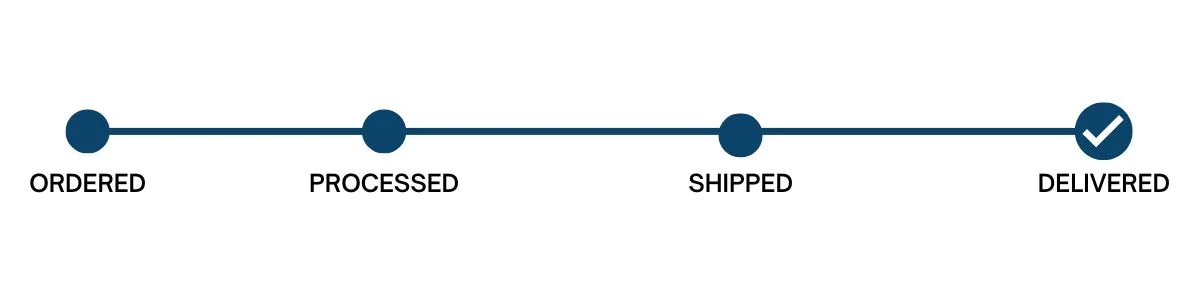
Pro Tip: Keep your information up to date. Ensure your clinic’s email and contact info are current for timely updates.
Track Orders in Real Time
View order status and shipment details under My Orders → Track Shipment.
Email Updates
Receive order confirmations, shipment notifications, and delivery confirmations automatically.
Account Customization
Tailor your Movora account to fit your clinic’s workflow.
Create Approval Processes
Assign roles to streamline approvals and order management within your organization.
Manage Multiple Users
Grant access to your team members under User Management.
Time Saving Shorcuts
Make use of these time-saving shortcuts to reduce ordering time and refocus on what matters most, your patients.
Bookmark Your Favorites
Save your most-used product pages or categories directly in your browser for one-click access. Use the star by the url to bookmark a page.

Create Lists
Create lists of product that are frequently ordered.
Download Invoices, Statements, Credit Memos Anytime
Need a copy for your clinic’s accounting? Find all invoices under Account → Invoices → View Invoice → Print Invoice.

Support at Your Fingertips
The Movora team is here when you need us, and we’ve built resources to help you find answers fast.
Check the FAQs
Visit our Customer Care FAQ page for instant answers to common questions about your account, orders, and returns.
Contact Our Team
If you need personal assistance, head to Contact Us, our dedicated support team is ready to help.
Pro Tip: Include your customer number when contacting support for faster assistance.
